
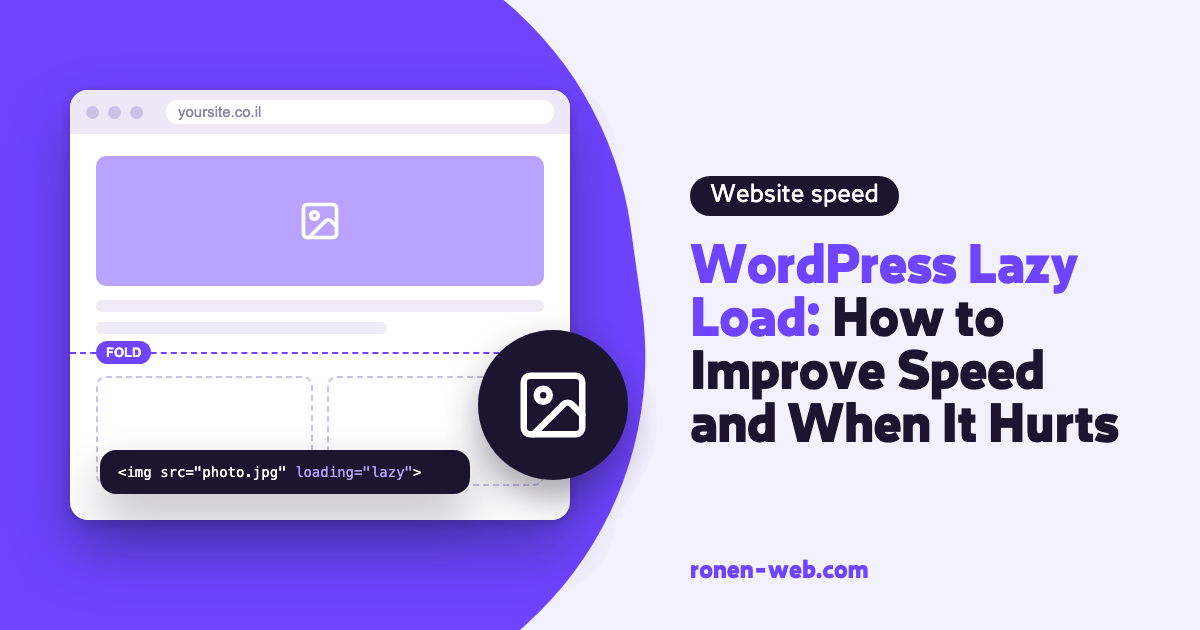
If you are asking how to improve site speed with WordPress lazy load, the short answer is to lazy load only what sits below the first part of the screen, and to leave the main image alone. Lazy loading saves the download of images and iframes the visitor does not see yet. But when you apply it to the top image, it delays exactly what the visitor is waiting for.
There is a second case where it hurts: background images loaded through CSS, mainly in carousels and sliders. There it can leave parts of the page blank.
Below I explain what WordPress already does by itself, and then go through the checks in order: how to spot each problem, how to fix it, and how to measure that the fix worked.
What lazy loading is and how it works
Lazy loading tells the browser not to download a resource immediately, but only when it gets close to the visible area of the screen. According to the web.dev guide, the browser-level way is the loading attribute, and it has two values:
loading="lazy": the browser defers loading until the resource gets within a certain distance of the screen.loading="eager": the default behavior, loading immediately regardless of position.
The attribute works on img tags and on iframe, for example an embedded YouTube video. It does not work on background images defined in CSS, so optimization plugins use JavaScript for those. That is where some of the problems we will see later come from.
The browser does not wait for the image to enter the screen exactly. According to web.dev, in Chrome the distance depends on connection speed: about 1,250 pixels on a 4G connection and about 2,500 pixels on 3G or slower. That way the image is usually already ready when the visitor scrolls to it. According to the measurements cited there, on a 4G connection about 97.5% of the lazy loaded images finished loading within 10 milliseconds of becoming visible. When lazy loading is set up correctly, the visitor should not feel it at all.
According to the same guide, the attribute is supported in Chrome from version 77, in Edge from version 79, in Firefox from version 75 and in Safari from version 15.4. In practice every current browser knows it, and an old browser that does not simply loads the image right away.
Lazy load in WordPress: what is already built into your site
Before you install a plugin for lazy loading, know that WordPress already does it by itself. And if you are still deciding which general optimization plugin to install, I compared the common options in the guide on speed optimization plugins. This is what is already built into WordPress:
- According to the WordPress developer documentation, since version 5.5 the system adds
loading="lazy"to images by default, and since version 5.7 to iframes as well. - From version 6.3 WordPress has a function that decides which loading attributes to give each image. It does not lazy load the first images on the page, and to the image that looks like the main image it gives
fetchpriority="high". - If for some reason you need to turn off WordPress lazy loading completely, there is an official filter for it called
wp_lazy_loading_enabled.
The code to turn it off completely goes into the child theme’s functions.php file, or into a snippets plugin:
add_filter( 'wp_lazy_loading_enabled', '__return_false' );On most sites there is no reason to do this. It is mainly relevant when another mechanism handles the lazy loading and you want to be sure two are not working at the same time.
If you have WP Rocket: according to WP Rocket’s documentation, when their LazyLoad is active, WordPress lazy loading is turned off automatically. WP Rocket’s LazyLoad works with JavaScript, and by default it loads images within 300 pixels of the screen. The settings are on the Media tab, in the LazyLoad area.
You can change the 300 pixel range, and the WP Rocket documentation gives a filter for this called rocket_lazyload_threshold. In this example the range drops to 100 pixels, and the code goes into the child theme’s functions.php or a snippets plugin:
function rocket_lazyload_custom_threshold( $threshold ) {
	return 100;
}
add_filter( 'rocket_lazyload_threshold', 'rocket_lazyload_custom_threshold' );
According to the documentation, a smaller range makes images “jump” in when you scroll fast, and a larger range loads more images on the first load, so it saves less. They themselves describe the choice as a matter of preference, so on most sites there is no reason to touch it.
Check 1: Is the main image being lazy loaded?
This is the first check, because this is where lazy loading hurts performance the most. Here is how to check:
- Run the page in PageSpeed Insights and look at LCP, the time until the largest piece of content on the screen appears. According to web.dev, a good value is up to 2.5 seconds.
- In the diagnostics part of the report you see which element was chosen as the LCP. If it is an image, it is the suspect.
- Open the page source and find the image. If it has
loading="lazy", or plugin attributes like WP Rocket’sdata-lazy-srcinstead of a regularsrc, it is being lazy loaded.
Why is this harmful? web.dev says explicitly not to lazy load images that are likely to be on screen when the page loads, and especially the LCP image. An article on web.dev that looked at the impact on WordPress sites found that lazy loading above-the-fold images hurt LCP, and that when lazy loading was limited to images below the fold, the harm went away.
To understand why, web.dev breaks LCP into four parts: the time until the server sends the first byte, the delay until the browser starts downloading the image, the download time, and the delay until the image is rendered. Lazy loading the main image extends the second part: the browser knows the image exists, but waits instead of starting to download it.
There are a few ways to fix it:
- In WP Rocket, add the image file name, or its CSS class, to the Excluded images or iframes box on the Media tab.
- In the theme or code, make sure the main image has
loading="eager"or noloadingattribute at all, and addfetchpriority="high", as web.dev recommends for an LCP image. - If you work only with WordPress built-in lazy loading, in most cases it already handles this from version 6.3. Still, check the page source, because a theme or page builder can override its decision.
Check 2: Lazy images that cause layout jumps
The sign here is a CLS score above 0.1, or a feeling that the text moves down while you scroll. web.dev explains that when an image loads without the browser knowing its size in advance, the content below it is pushed when it appears.
The fix is to give every image width and height, or aspect-ratio in CSS, so the browser reserves space for it before it arrives. The web.dev guide on lazy loading says that without dimensions, lazy loading saves network resources at the cost of more layout shifts.
The easiest way to check is in the page source: find the images that came in through page builders, widgets or manual code, and make sure each one has width and height.
Check 3: CSS background images and carousels
Here lazy loading can not only slow things down, but break the display.
WP Rocket offers a separate option called LazyLoad for CSS background images, on the same Media tab. According to their documentation, it replaces the background image URLs with CSS variables and loads them with JavaScript when the element gets close to the screen. The documentation does not mention carousels explicitly, but it does recommend excluding an element when the image or layout breaks because of lazy loading.
I saw this happen on a travel website: lazy loading of CSS background images (an option in WP Rocket) left slides in a carousel blank, and turning off the option solved the problem.
These are the signs, and how to find the culprit:
- A carousel, slider or banner that shows up blank or partial, mainly after moving between slides.
- WP Rocket suggests checking display problems by adding
?nowprocketto the end of the URL, so the page is shown without their optimizations. If with the addition the slides are full and without it they are blank, one of the optimizations is at fault. - To find which one, their documentation recommends turning off the options on the File Optimization and Media tabs, testing in a private browsing window without being logged in, and turning them back on one after another.
And there are two ways to fix it:
- Turn off LazyLoad for CSS background images, as in the case I described.
- Or keep it active and exclude the problematic element through the Excluded images or iframes box, with a file name, a CSS file or a CSS class. The WP Rocket documentation recommends exclusion in exactly two situations: when the image or layout breaks because of lazy loading, and when the background images are in the top part of the page and need to load right away.
After every change, clear the WP Rocket cache and test again, on mobile too.
The WP Rocket documentation notes two more things about this option: on sites with a lot of CSS it can lengthen the server response time while the cache is being generated, and on weak servers it can cause high CPU usage. If the site gets slower after you turn it on, that is another sign to check it.
Check 4: Two mechanisms working at the same time
Sometimes a site has more than one mechanism trying to lazy load: an optimization plugin, a page builder with its own setting, a dedicated image plugin. In the page source this looks like signs of several different mechanisms on the same image.
The solution is to keep one mechanism. The WP Rocket documentation states explicitly that their background image option is not compatible with other lazy loading solutions for background images. And for regular images, we already saw that WP Rocket turns off the built-in WordPress lazy loading when its LazyLoad is active.
How to improve site speed with lazy load without breaking anything: measure before and after
Lazy loading mainly affects two metrics: LCP, if it touches the main image, and CLS, if images have no dimensions. To know whether a change helped, work in this order:
- Before: run PageSpeed Insights on a few representative pages, on mobile and desktop, and save a screenshot.
- One change: exclude the main image, or turn off the option for background images, or add dimensions. Not everything together.
- After: clear the cache, run again, and also check by eye that all the images and slides appear.
It is also worth understanding what you see in the report. According to the PageSpeed Insights documentation, field data comes from real users and covers the last 28 days, so it updates gradually. Lab data comes from Lighthouse, a single test in a simulated environment, and it changes immediately. Lab data shows whether the fix did something, and field data shows whether visitors felt it.
With CLS the gap between the two kinds of data is especially noticeable. According to web.dev, field data captures shifts that happen during scrolling, while a lab test mostly measures the top part of the page. Lazy loaded images appear only on scroll, so a shift they cause can show up in field data and not in the lab test.
For tracking over time there is the Core Web Vitals report in Search Console. It is based on real user data, groups similar URLs into groups and shows which are good, need improvement or are poor. After a fix you can ask it to validate the fix, and the tracking process takes 28 days.
One more thing: Google writes in its page experience document that good Core Web Vitals results do not guarantee a place at the top of the results. Correct lazy loading improves the visitor’s experience, and that is the main reason to do it. If the site does not show up on Google at all, the problem is probably elsewhere, and I wrote about it in the article why your website is not showing on Google.
When to stop and call an expert
- The main image is not lazy loaded, but LCP is still slow. The problem is probably in the server, the image size, files that block rendering, or images not being served from a server close to the visitor (in the guide what is a CDN I explained when that matters). In any case, it is no longer a problem of the lazy loading itself.
- Parts of the page disappear and you cannot isolate which optimization is responsible. If the problem is in the CSS and JavaScript themselves and not in images, that is a separate subject, which I wrote about in the guide website code optimization.
- The carousel or slider was built with custom code, and the exclusion in WP Rocket does not solve it.
- The site is a store, and product images that do not load hurt sales directly.
And before any code change on a live site, you need a full backup.
Frequently asked questions
How do I improve site speed with lazy load in WordPress?
WordPress already adds lazy loading to images and iframes. What is left for you is to make sure the main image is not lazy loaded, that all images have dimensions, and that only one mechanism handles it.
Do I need a plugin for lazy loading?
Not necessarily. WordPress built-in lazy loading covers images and iframes. A plugin like WP Rocket adds lazy loading for CSS background images too, but that is also the option that needs the most testing.
How do I know if the main image is being lazy loaded?
In PageSpeed Insights you see which element is the LCP. Then you find it in the page source. loading="lazy" or data-lazy-src on that image means it is lazy loaded.
If I have WP Rocket, do I need to turn off WordPress lazy loading?
No. According to the WP Rocket documentation, when their LazyLoad is active, the built-in WordPress lazy loading is turned off automatically. There is no need to add code for that.
What does lazy loading actually save?
It saves the download of images and iframes the visitor may never reach. Someone who lands on the page and leaves after the first screen does not download all the images at the bottom of the page.
Does lazy loading work on YouTube videos?
Yes. The loading="lazy" attribute works on iframes, and an embedded YouTube video is an iframe. WordPress adds it to iframes since version 5.7.
Why are there blank slides in my slider after I turned on lazy load?
The likely reason is lazy loading of CSS background images. Test with ?nowprocket at the end of the URL, and if the slides come back, turn off LazyLoad for CSS background images or exclude the slider.
Does lazy load affect Google rankings?
Google says its ranking systems take page experience into account, but there is no single signal, and good Core Web Vitals results do not guarantee a first place. Correct lazy loading can improve the metrics. Lazy loading the main image can make them worse.
If after all the checks the site is still slow, or parts of it disappear and you cannot find out why, I can take care of it for you.