
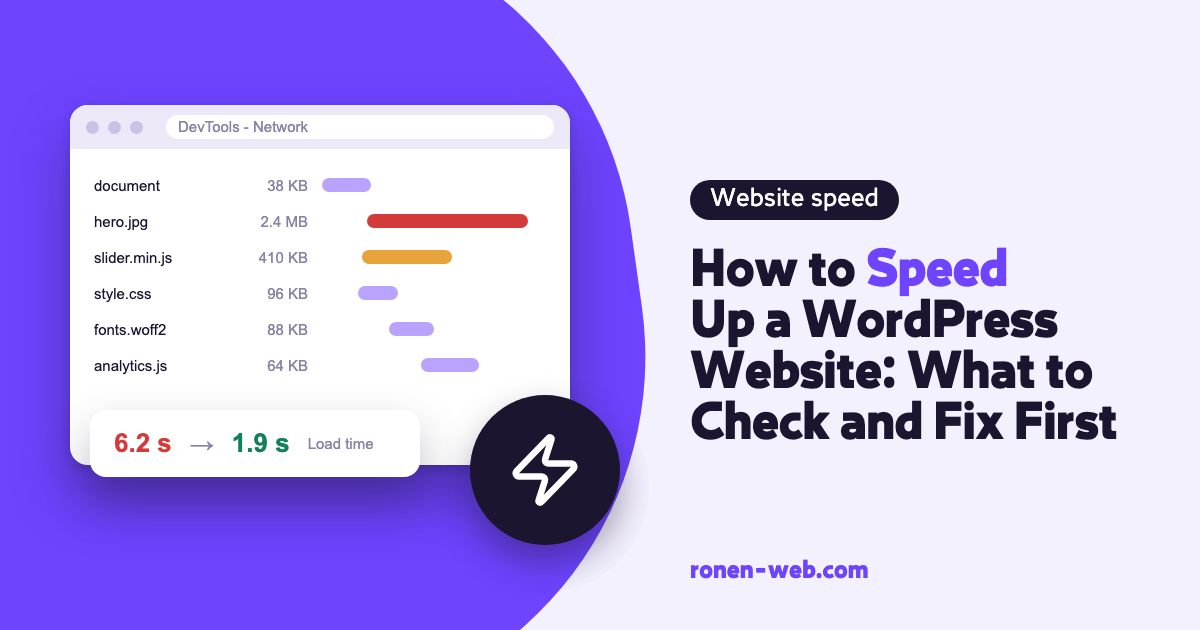
To speed up a WordPress website, start with measurement, not with a plugin. First check in PageSpeed Insights which metric is stuck, and only then fix what is really slowing you down: a server with no caching, heavy images, too much JavaScript from plugins, CSS that blocks rendering, or content that jumps around.
The order matters. There is no point compressing images if the server takes a long time just to start answering, and there is no point switching on ten optimization settings at once, because if something breaks you will not know what broke it.
So here is the order I follow on a slow WordPress site: how to spot each problem, how to fix it, and when it is better to stop.
Speeding up your site starts with measuring
Before you touch anything, run PageSpeed Insights on three or four representative pages: the home page, a service page, and if you have a store, a product page. Save a screenshot of the results, for mobile and for desktop. And while you are there, it is worth checking that the page also looks right on mobile and does not just load fast, using the checklist in the responsive website guide.
The report has two kinds of data. According to the PageSpeed Insights documentation, field data comes from the Chrome User Experience Report and summarizes the experience of real users over the last 28 days. Lab data comes from Lighthouse, which tests the page once in a simulated environment.
The three metrics worth knowing are the Core Web Vitals, and each has its own threshold:
- LCP: the time the largest piece of content appears on screen. Good is up to 2.5 seconds. It is mostly affected by the server, the images and files that block rendering.
- INP: how fast the page responds to clicks. Good is up to 200 milliseconds. It is mostly affected by the amount of JavaScript.
- CLS: how much the content jumps around. Good is up to 0.1. It is affected by image dimensions, banners and fonts.
After each fix, clear the cache and run it again. Lab data will change right away. Field data will update gradually, because it covers a 28-day window.
1. The server answers slowly: page caching and PHP
In the field data of PageSpeed Insights you will see TTFB, the time until the server starts sending the page. On web.dev it is defined as the first of the four parts that make up LCP. If it is high, every other fix will help less. These are the things that bring it down:
- Page caching. According to the WordPress optimization guide, a caching plugin that saves posts and pages as static files gives the biggest benefit for the smallest effort. It is better to choose one caching plugin and set it up all the way. A comparison of the common options is in the guide to speed optimization plugins.
- Object caching. On sites with a lot of queries, such as stores, a persistent object cache saves trips to the database. It requires support from your hosting.
- PHP version and OPcache. On the WordPress site, on the requirements page, the recommendation is PHP 8.3 or higher. The optimization guide also recommends an opcode cache such as OPcache. You check both in your hosting control panel. You can also see the PHP version in WordPress itself, under Tools and then Site Health, in the Info tab. If the version is old, Site Health shows a message in the Status tab that starts with Your site is running on an older version of PHP, or Your site is running on an outdated version of PHP when the version no longer receives security updates.
Before you update PHP, take a full backup, because an old plugin or theme may not support the new version.
2. Images that are heavy or load at the wrong time
In its diagnostics section, Lighthouse shows which element was chosen as the LCP. If it is an image, check its weight, its format, and whether it has lazy loading. What you can fix:
- Format and compression. The WordPress optimization guide recommends WebP when possible. Upload an image at the size it is displayed, not a huge original photo.
- Do not lazy-load the main image. web.dev recommends not applying lazy loading to the LCP element, and giving it
fetchpriority="high". WordPress has added lazy loading to images by default since version 5.5, and from version 6.3 it tries to identify the images at the top of the page, not lazy-load them, and give priority to the image that looks like the main one. An optimization plugin or a theme can override this, so check in the page source what is actually on the top image. - Dimensions. Every image needs
widthandheight, so the browser reserves space and nothing jumps.
3. Too many plugins and too much JavaScript
The signs here are a high INP in the field data, or Lighthouse recommendations like reducing unused JavaScript and minimizing main-thread work. According to web.dev, the main cause of a poor INP is long tasks that freeze the browser, and heavy JavaScript is their common source. This is what you can do:
- Cut down on plugins. This is the first item on the WordPress optimization list. Go through the plugin list and remove what you do not use. Chats, sliders and popups that nobody needs anymore load code on every page.
- Defer JavaScript. In WP Rocket, in the File Optimization tab, there are two options. Load JavaScript deferred adds the
deferattribute to scripts so they do not block rendering. Delay JavaScript execution postpones loading scripts until the user’s first interaction, such as scrolling, tapping or moving the mouse. - External scripts. Pixels, maps and chats are third-party JavaScript. Each one is more work for the browser.
Deferring JavaScript is also where things break, for example a mobile menu that does not open or a form that does not submit. WP Rocket recommends checking a problem like this with ?nowprocket at the end of the URL, which bypasses their optimizations. If the problem disappears, turn off the options in the File Optimization and Media tabs and turn them on one at a time until you find the culprit.
4. CSS that blocks rendering
Lighthouse flags render-blocking requests. The browser has to download and process the CSS files before it paints the page, and every such file delays what the visitor sees.
In WP Rocket, according to their documentation, there are two ways to deal with this: Remove Unused CSS, which is their recommended method for performance, and Load CSS Asynchronously. The WordPress optimization guide also recommends minifying CSS and JavaScript files and reducing the number of requests.
After turning it on, check the page in an incognito window, while not logged in as an admin, and make sure the design is intact.
5. Content that jumps: CLS
The sign here is a CLS above 0.1, or a feeling that the page moves while you are trying to click.
According to web.dev, a shift that happens within 500 milliseconds of a user’s click is not counted in CLS. A menu that opens because you clicked it is not the problem. The problem is content that moves without you touching anything.
According to web.dev, the common causes are images without dimensions, ads and embeds that load late, content injected above existing content, font swapping, and animations that move elements. So the fixes are these: give images dimensions, reserve space with min-height for banners and embeds, preload the critical font, and animate with transform.
6. CDN and database
The WordPress optimization guide explains that moving images, JavaScript files and CSS to a CDN is faster and takes load off the server. This is especially relevant when the server is far from your visitors.
As for the database, the same guide recommends cleaning it, limiting stored post revisions, and keeping autoloaded options under 800KB. If you are not sure how to check this, you can ask your host.
If you are also working on traffic to the site and not only on speed, I wrote about that in the article on how to bring organic traffic to your site.
When to stop and call an expert
- TTFB is high even after you turned on page caching. The problem is probably in the server, the hosting or code that runs on the server side. In that case it is worth checking whether the hosting itself is the problem, and I wrote about that in the guide to fast website hosting.
- You turned on an optimization and something broke, and you cannot isolate what.
- The site is a store, and any change to the product page or checkout could hurt orders.
- A PHP update is needed, but the site has plugins or a theme that have not been updated for a long time.
One more thing worth knowing up front: Google writes in its page experience document that good Core Web Vitals results do not guarantee a top spot in the results. Speeding up your site improves the experience of your visitors, but it does not replace relevant content.
Frequently asked questions
Where do you start to speed up a WordPress website?
With measurement in PageSpeed Insights, and then the server: page caching and an up-to-date PHP version. Only after that do you move on to images, JavaScript and CSS.
Where can you see which PHP version is installed on your site?
In the WordPress dashboard, under Tools and then Site Health, in the Info tab. You switch to a newer version in your hosting control panel, after a full backup.
Can deferring JavaScript break the site?
Yes. If a menu, form or slider stops working after you turn it on, check the page with ?nowprocket in WP Rocket, and exclude the problem script or turn the option off.
What is the difference between Load JavaScript deferred and Delay JavaScript execution?
According to the WP Rocket documentation, Load JavaScript deferred adds the defer attribute to scripts, so they run after the browser has read the HTML and do not block rendering. Delay JavaScript execution goes further: it does not load the scripts at all until the user scrolls, touches the screen, moves the mouse or presses a key. It is more powerful, and so the chance that it breaks something is also higher.
Why did my score go up but my field data did not change?
Field data is a summary of the last 28 days of real users, so it updates gradually. The lab score changes right away.
Will speeding up my site improve my Google ranking?
Google says its ranking systems take page experience into account, but there is no single signal, and the relevance of the content comes first. You cannot promise a change in ranking because of speed.
Do you need to reach a score of 100?
No. The goal is for the three metrics to be in the good range for real users, on mobile and on desktop.
If you went through the steps and the site is still slow, or an optimization that broke something is waiting to be fixed, I can take care of it for you.