
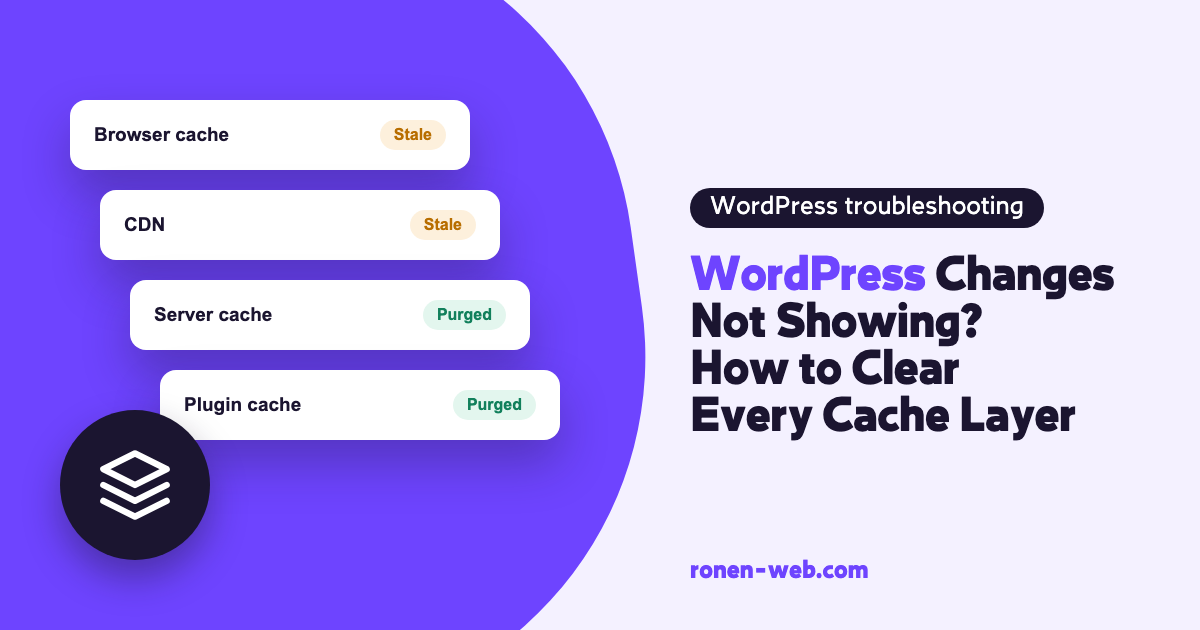
You saved a change in WordPress, refreshed the page, and see WordPress changes not showing, with the old version still there. In most cases the change was saved just fine, and what you are seeing is an old copy stored in one of the website cache layers: your browser, your caching plugin, the server or the CDN. Each layer keeps its own copy, and as long as one layer has not been cleared, it keeps serving the old version.
The fix is to go through the layers in order, from the closest to you to the farthest, and clear each one. In this guide I explain, for each layer, how to tell it is the one that is stuck and how to clear it, including a real case where the last layer was never cleared.
Before you change cache settings or touch server files, take a full backup of the files and the database. Clearing a cache does not delete content, but changing settings can break things.
How website caching works: the four layers
A cache is a stored copy of content, so it does not have to be rebuilt or downloaded again on every visit. A typical WordPress site has up to four layers:
- The browser: stores files such as images, CSS and JavaScript on the visitor’s computer, based on headers like Cache-Control and Expires that the server sends.
- The caching plugin: plugins such as WP Rocket, WP Super Cache or W3 Total Cache save pages as static files and serve them without running WordPress again.
- The server: server-level caching, for example Varnish sitting in front of the site, or an object cache such as Redis or Memcached that stores data pulled from the database.
- The CDN: a network such as Cloudflare that stores copies on its own servers and serves them to visitors from a location close to them.
How long each copy stays is mostly decided by the server, through HTTP headers. According to the WordPress documentation, headers such as Cache-Control (including max-age) and Expires tell the browser to keep files that do not change, and to check with the server whether they changed instead of downloading them again. Cloudflare also follows the same headers: it does not cache a response when Cache-Control is set to private, no-store, no-cache or max-age=0, or when the response includes Set-Cookie. This is one reason it is hard to guess what is happening in website caching: the same page can be cached in one layer and not in another.
When your changes do not show up, the question is which layer is holding an old copy. Start with the browser, because it is the fastest check.
Layer 1: your browser cache
The first check is to open the page in an incognito window or in another browser. If the new version shows up there and your regular browser shows the old one, the problem is only on your side, and your visitors do not necessarily see what you see.
In that case, clear the browser cache. In Chrome, click the More menu in the top right corner, choose Delete browsing data, pick a time range, check Cached images and files and confirm with Delete data. After a clear like this, some sites will load a bit slower the first time, because images are downloaded again.
Layer 2: the WordPress caching plugin
A caching plugin stores ready-made pages. If it did not clear its copy after your change, even a new visitor will get the old version. In WP Rocket, according to its documentation, the cache is cleared automatically in most common situations, but not in all of them.
If in an incognito window, while logged out, you still see the old version, the plugin is a prime suspect. In WP Rocket you can add ?nowprocket to the end of the URL, which bypasses the plugin’s optimizations. If the change shows up in that version, the plugin’s cache is stuck.
To clear it in WP Rocket, go to Settings > WP Rocket, and in the Dashboard tab click Clear and preload cache. You can also use the plugin’s menu in the top admin bar, and for a single page use the Clear this cache link in the pages list. Other plugins have an equivalent button, usually in the plugin settings or in the admin bar.
Layer 3: server and hosting cache
Many hosting companies run their own caching, outside WordPress. The WordPress documentation describes cache servers that sit “in front of” the site’s server, such as Varnish, and object caches such as Redis or Memcached.
Suspicion moves to this layer when you cleared the caching plugin and in an incognito window the change still does not show up. To check, open the browser’s Developer Tools, go to the Network tab, refresh the page and click the first request. In the Response Headers, look for cache-related headers. The names vary between hosting companies, and if it is not clear what you are seeing, you can ask their support whether there is a server cache and how to clear it.
You clear it from your hosting control panel, usually under an option called Purge or Flush, or through their support. If there is an object cache, clear that too. From WordPress’s point of view this is safe: according to the documentation, data in an object cache is meant to rebuild itself, and no information is lost.
Layer 4: the CDN, and a case where nobody cleared the cache
If you are not sure what a CDN is exactly, it is, in short, a network of servers that spreads copies of your site close to the visitor. In Cloudflare, according to their documentation, HTML files are not cached by default, and only files by extension, such as CSS, JS and images, are stored. But if someone set a cache rule that makes the whole site eligible for caching, known as Cache Everything, the pages themselves are also stored on Cloudflare’s servers. From that moment Cloudflare serves its own copy, and what happens in WordPress does not affect it until it is cleared.
A real case from my work: a site sat behind Cloudflare in Cache Everything mode, and nothing cleared the cache at the edge, so changes did not show up for visitors.
To check whether this is your situation, look in the Network tab, in the page’s response headers, for CF-Cache-Status. If the value is HIT, the page came from Cloudflare’s cache and not from your server. And in Cloudflare, under Cache Rules, check whether there is a rule that sets Eligible for cache for the whole site.
The clearing is done in the Cloudflare dashboard: go to the Configuration page, and under Purge Cache choose Purge Everything and confirm (the official instructions). After that, the next request for any page will return the value MISS in CF-Cache-Status, meaning Cloudflare pulled the current version from your server. Cloudflare itself recommends purging by single URL when possible, instead of clearing everything. If you are working on the site for a few hours, there is also Development Mode, which bypasses the cache at the edge for three hours, but does not delete it.
It is also worth knowing how long a copy is kept: according to Cloudflare, when the server does not send Cache-Control or Expires, responses with a 200 status code are kept at the edge for 120 minutes by default. And in the long run, if you leave Cache Everything on, something has to clear this website cache layer in Cloudflare after every update, or the problem will come back. And if after all this you still see odd behavior with Cloudflare, there is a separate guide to Cloudflare problems.
Clearing the cache on your site: the right order
When you do not know which layer is stuck, clear from the inside out: first the caching plugin, then the server cache, then the CDN, and last your own browser. The order matters, because if you clear Cloudflare before the caching plugin, Cloudflare may pull from the server the same old copy the plugin still holds and store it again. After each clear, check in an incognito window, and if you have Cloudflare, look at CF-Cache-Status too. Clearing the cache is a regular part of ongoing website maintenance, alongside core updates, plugins and backups.
If the change still does not show up after clearing every layer, you need to make sure it was really saved, meaning open the page in the editor and see that the new content is there. If it is not there, the problem is in saving and not in the cache, and then it is worth turning on WP_DEBUG and WP_DEBUG_LOG in wp-config.php and checking the wp-content/debug.log file, or asking your host for the server error log.
When to stop and call an expert
There are situations where it is better to stop: you have no access to Cloudflare or to the hosting control panel, you are not sure who set the cache rules and why, your site has a shopping cart or a members area that could be hurt by a change in cache settings, or you cleared everything and the changes still do not show. If that is the case, I can handle it: map all the cache layers on the site and make sure every change reaches your visitors.
Frequently asked questions
What is website caching in simple terms?
A stored copy of your site’s pages and files, in the browser, in a plugin, on the server or on a CDN, so they do not have to be rebuilt or downloaded again on every visit. It is what speeds up the site, and it is also what makes an old version show up after a change.
Why do I not see my site changes, but other people do?
Almost always because of your own browser cache. Open the page in an incognito window. If the change shows up there, clear your browser cache.
Does clearing the cache delete content from the site?
No. Clearing a cache only deletes stored copies, and they are rebuilt from the original content on the next request. The site may load a little slower the first time after clearing.
Does Cloudflare cache my site’s pages?
According to Cloudflare, by default HTML files are not cached, only files by extension such as CSS, JS and images. If a Cache Everything rule is set, the pages are cached too, and you need to clear them after every update.
What is the difference between Development Mode and Purge Everything in Cloudflare?
Development Mode bypasses the cache at the edge for three hours without deleting it. Purge Everything deletes everything that is stored, and Cloudflare pulls a new version from your server on the next request.
In what order do you clear the cache on a site?
From the inside out: the caching plugin, the server cache, the CDN, and last the browser. That way no layer pulls an old copy from a layer that has not been cleared yet.